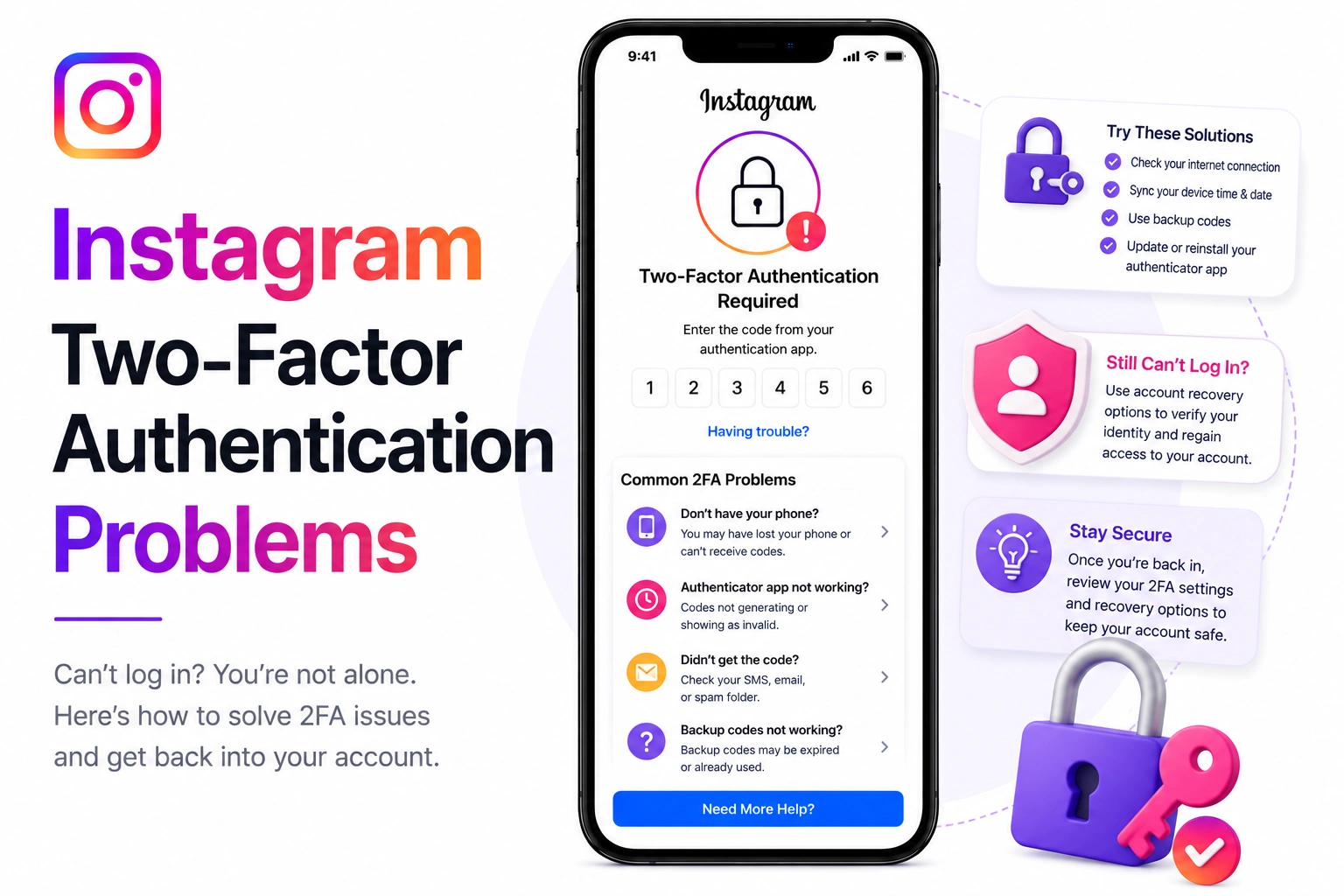
Instagram is asking for a two-factor authentication code. But you lost your phone. Or changed your number. Or your authentication app got deleted. Now you're locked out of your account with no way to get that 6-digit code.
2FA lockouts are one of the most frustrating Instagram issues because the security feature designed to protect you becomes the barrier keeping you out. But there are ways around it - official recovery methods Instagram provides specifically for this situation.
This guide covers every method to recover access when two-factor authentication fails, from quick fixes to longer recovery processes.
Quick Diagnosis: Why Your 2FA Isn't Working
Before diving into recovery methods, identify your specific 2FA problem. The solution depends on what's broken.
Problem 1: Code Not Arriving
Symptoms: You request an SMS code but nothing comes
Causes:
- Carrier blocking Instagram's SMS (common with certain carriers)
- Phone number no longer active
- Changed phone number recently
- International travel with roaming issues
- Phone service temporarily suspended
Problem 2: Code Not Working
Symptoms: You enter the code but Instagram says it's wrong
Causes:
- Phone's clock is off (time-based codes require exact time sync)
- Waiting too long to enter code (codes expire in 30 seconds)
- Typo in code entry
- Authentication app not synced
- Using old code after requesting a new one
Problem 3: Lost Access to Authentication Method
Symptoms: Can't receive codes because you lost phone or deleted app
Causes:
- Lost or stolen phone
- Deleted authentication app by accident
- Factory reset phone
- Switched to new phone without transferring auth app
- Authentication app account logged out
Method 1: Use Backup Codes (Fastest)
When you first set up 2FA, Instagram gave you backup codes. If you saved them, this is your instant solution.
How to Use Backup Codes
- On the login screen where Instagram asks for 2FA code, look for "Need more help?" or "Use backup code"
- Click it
- Enter one of your saved backup codes (each code works once)
- You'll be logged in immediately
Where People Store Backup Codes
Check these places if you don't remember saving them:
- Screenshots in your photo library
- Notes app on your phone
- Password manager (1Password, LastPass, etc.)
- Email sent to yourself
- Cloud storage (Dropbox, Google Drive)
- Physical paper in a safe place
Each backup code works only once. After you use one to log in, immediately go to Settings > Security > Two-Factor Authentication and regenerate new backup codes. Save them somewhere safe this time.
Method 2: Fix Clock Sync Issues
If you're using an authentication app (Google Authenticator, Authy, etc.) and codes aren't working, your phone's clock might be off.
For iPhone
- Go to Settings > General > Date & Time
- Enable "Set Automatically"
- If already enabled, toggle it off and back on
- Wait 30 seconds for time to sync
- Try the authentication code again
For Android
- Go to Settings > System > Date & Time
- Enable "Use network-provided time"
- If already enabled, toggle it off and back on
- Restart your phone
- Try the authentication code again
For Google Authenticator Specifically
- Open Google Authenticator
- Tap the three dots menu
- Go to Settings > Time correction for codes
- Tap "Sync now"
- Try generating a new code
Method 3: Login with Facebook
If your Instagram is linked to Facebook, you can bypass 2FA entirely.
Steps
- On the Instagram login screen, look for "Log in with Facebook"
- Click it
- Log into Facebook if you aren't already
- Instagram will log you in without asking for 2FA
- Once logged in, go immediately to Settings > Security > Two-Factor Authentication
- Update your 2FA method or disable it temporarily
Why this works: Facebook login uses a different authentication path that doesn't trigger Instagram's 2FA if the accounts are linked.
If you don't know if your accounts are linked, try it anyway. The worst that happens is it doesn't work and you try another method. If it works, you've just saved yourself days of recovery time.
Method 4: Request Support Through Instagram
If you can't use backup codes or Facebook login, Instagram has a formal 2FA recovery process.
Desktop Process
- Go to instagram.com and try to log in
- When asked for 2FA code, click "Need more help?" or "Get help signing in"
- Select "I can't access my two-factor authentication"
- Enter your username or email
- Request security code via email (not SMS if that's the problem)
- Check your email for recovery link
- Follow the identity verification process
Mobile App Process
- Open Instagram app
- On login screen, tap "Get help signing in"
- Enter username or email
- Tap "Need more help?"
- Select "I can't access my two-factor authentication"
- Follow prompts for identity verification
What Instagram Will Ask For
To verify your identity, be prepared to provide:
- Email address associated with account
- Original phone number used to create account (if you remember it)
- Recent account activity details
- Selfie video holding a code on paper
- Government-issued photo ID
Method 5: Use Trusted Contacts
If you previously set up trusted contacts in Instagram, they can help you recover access.
How It Works
- On the login screen, select "Get help from friends"
- Instagram will show you 3-5 of your designated trusted contacts
- Select 3 of them
- Instagram sends each of them a security code
- Contact your friends and get the codes from them
- Enter all three codes to regain access
The catch: You had to set this up BEFORE getting locked out. Most people never do, so this option isn't available. But if you did set it up, it's one of the fastest recovery methods.
Once you regain access through ANY method, immediately update your 2FA settings, save new backup codes, and ensure you have multiple recovery options (email, phone, trusted contacts). Don't get locked out twice from the same issue.
Method 6: Recover Your Phone Number
If your issue is a lost or changed phone number, recovery might be easier than you think.
If You Changed Carriers
Your old number might still be assigned to you for 30-90 days:
- Contact your old carrier
- Explain you need temporary access for account recovery
- Some carriers can forward SMS to your new number
- Or temporarily reactivate your old SIM card
If You Lost Your Phone
- If you have the same carrier and number, get a replacement SIM
- Your number transfers to the new SIM
- You'll receive Instagram's 2FA codes on the new phone
If Number Was Reassigned
If your old number was reassigned to someone else:
- You can't get SMS codes to that number anymore
- Don't ask the new owner to give you codes (privacy/security issue)
- You'll need to use Method 4 (Request Support) instead
Method 7: Restore Authentication App Access
If you deleted your authentication app or got a new phone, you might be able to restore it.
For Authy Users (Easy)
Authy backs up to the cloud:
- Reinstall Authy on your phone
- Log in with your Authy account
- Your Instagram 2FA should automatically restore
- Generate a new code and log in
For Google Authenticator (Harder)
Google Authenticator doesn't back up automatically:
- If you still have your old phone, open Authenticator and manually transfer
- If phone is gone, you need to use backup codes or Instagram's recovery process
- In 2026, newer versions have cloud backup - check if you enabled it
For Microsoft Authenticator
- Reinstall Microsoft Authenticator
- Log in with your Microsoft account
- If you enabled cloud backup, accounts will restore
- If not, use backup codes or recovery process
Permanently Locked Out?
If 2FA recovery isn't working and your account is disabled, you may need to appeal. Generate a professional appeal explaining the 2FA situation.
Generate AppealWhat to Do While Waiting for Recovery
If you're in the identity verification queue (3-7 days), here's how to minimize damage:
Secure Your Account Elsewhere
- Change passwords on all other accounts using the same password
- Enable 2FA on those accounts (but save backup codes!)
- Check for suspicious logins on email, Facebook, etc.
Communicate the Issue
- Post on your other social media that you're locked out
- Tell close friends/family so they're not confused by lack of response
- Update your email signature if you use Instagram professionally
- Set up auto-responder explaining temporary unavailability
Be Patient But Persistent
- Check your email daily for Instagram's response
- Check spam/junk folders
- If no response after 7 days, submit another support request
- Don't spam multiple requests daily - it doesn't help
How to Prevent This From Happening Again
Once you regain access, take these steps immediately:
Save Multiple Backup Methods
- Go to Settings > Security > Two-Factor Authentication
- Enable both SMS and authentication app
- Add multiple phone numbers if possible
- Set up trusted contacts
- Link to Facebook if you haven't
Save Backup Codes Properly
- Generate new backup codes
- Screenshot them and save to cloud storage
- Print a physical copy and keep it safe
- Store in password manager
- Email them to yourself (use a secure email)
Use a Better Authentication App
Switch from Google Authenticator to one with cloud backup:
- Authy: Cloud backup, works across devices
- Microsoft Authenticator: Cloud backup with Microsoft account
- 1Password: If you already use it for passwords
Test Your Recovery Options
Once every 3 months:
- Verify you still have access to your backup codes
- Confirm your phone number is still correct
- Check that trusted contacts are still active
- Test that you can log in via Facebook
Common Mistakes That Make 2FA Recovery Harder
- Creating a new account: Doesn't solve the problem and may violate Instagram's TOS
- Using third-party recovery services: Often scams that steal your information
- Asking friends to spam Instagram support: Doesn't speed up process
- Providing fake ID for verification: Gets you permanently banned
- Buying a "recovery service" on Fiverr: Waste of money, often scams
- Trying to guess backup codes: They're 8 characters, impossible to guess
Timeline: How Long Does 2FA Recovery Take?
Expected recovery times by method:
- Backup codes: Instant (if you have them)
- Facebook login: Instant (if accounts are linked)
- Clock sync fix: Instant
- Phone number recovery: 1-3 days (through carrier)
- Instagram identity verification: 3-7 days
- Complex cases: 7-14 days
Key Takeaways
- Try backup codes first if you saved them when setting up 2FA
- Check if Facebook login bypasses 2FA - often works if accounts are linked
- Clock sync issues cause many "invalid code" errors - easy fix
- Instagram has official 2FA recovery process via identity verification
- Recovery typically takes 3-7 days through formal channels
- Prevention is key: save backup codes, use cloud-backup auth apps, link to Facebook
- Never use third-party recovery services - stick to official Instagram channels
- Once recovered, immediately set up multiple backup options